Expenses & Incomes
Expenses and incomes are the building blocks of your budgets. Each item represents a recurring payment or receipt at a fixed frequency.
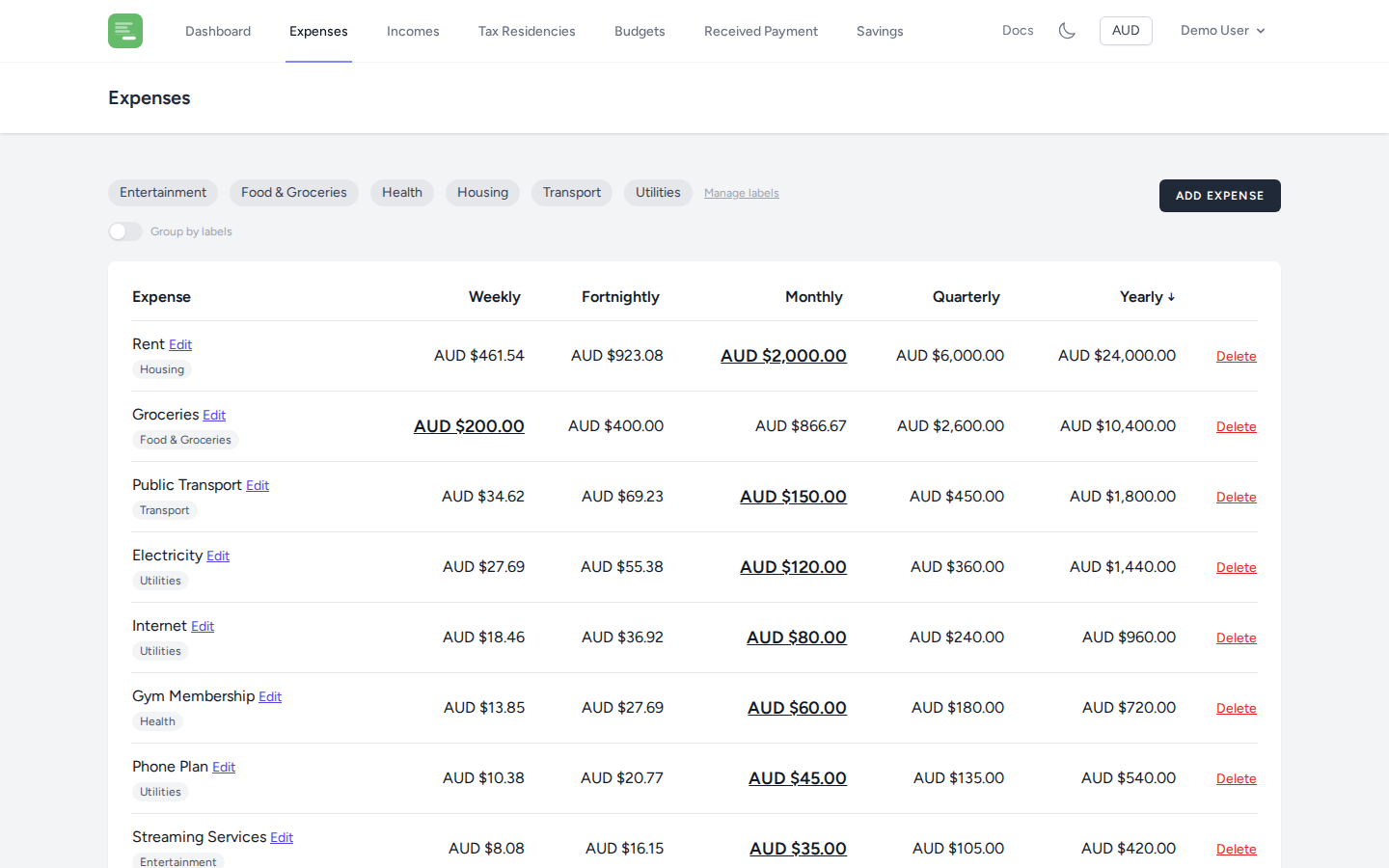
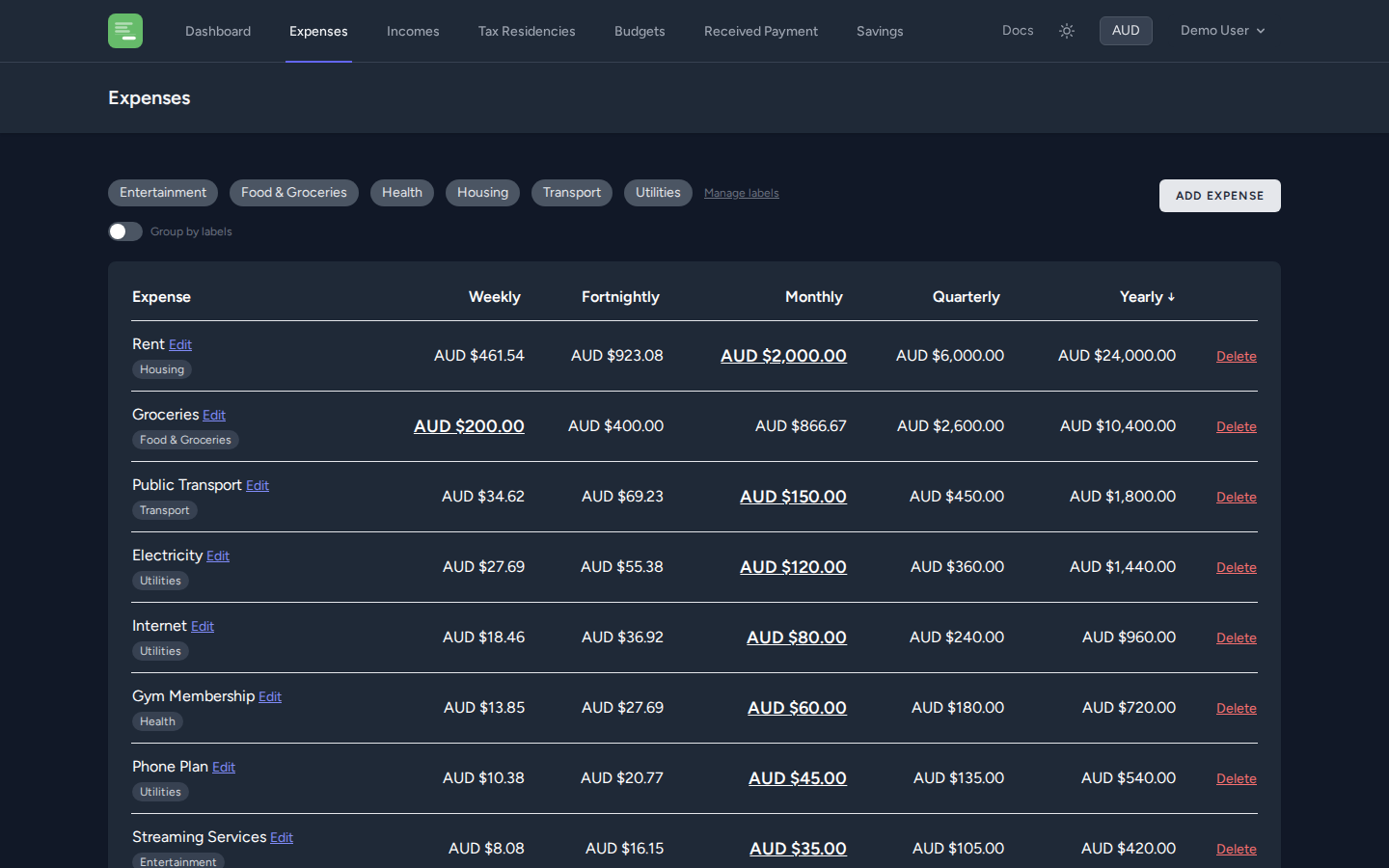
Adding an expense or income
Click Add Expense (or Add Income) to open the creation form.
Required fields
- Name — a short description (e.g. Rent, Salary)
- Amount — the amount per period
- Frequency — how often this amount occurs
Frequency options
| Frequency | Periods per year |
|---|---|
| Weekly | 52 |
| Fortnightly | 26 |
| Monthly | 12 |
| Quarterly | 4 |
| Yearly | 1 |
All amounts are automatically converted between frequencies for display throughout the app.
Currency
Leave the currency blank to use your display currency. If the expense or income is in a different currency (e.g. a USD subscription billed to an AUD account), set it here. The app will convert it using current exchange rates.
Labels
Assign one or more labels to each item. Labels are used to:
- Group items in the expense/income list
- Include items in a budget (a budget selects labels, not individual items)
- Link expenses to savings plans (as savings withdrawals)
You can create a new label inline from the form without leaving the page.
Income country
For income items, an optional country field is available. This is used to identify the source country for tax treaty calculations (e.g. which withholding rates apply to income from that country).
Editing and deleting
Each item in the list has Edit and Delete links. Deleting an item removes it from all budgets that include its labels.
Filtering the list
Use the label filter checkboxes above the table to show only items with specific labels. The active filter state is preserved in the URL so you can share or bookmark filtered views.
Sorting
Click any column header to sort by that column. Click again to reverse the sort direction. The default sort is by yearly amount, descending.
Grouping by label
Toggle Group by label to reorganize the table. Items are grouped under their labels with a subtotal row per group. Items with multiple labels appear under each label they belong to.
Multi-currency display
If an item is in a currency other than your display currency, the converted amount is shown in the main columns and the original amount appears as a smaller note beneath it.