Labels
Labels are categories that you assign to expenses and incomes. They are the bridge between individual items and budgets.
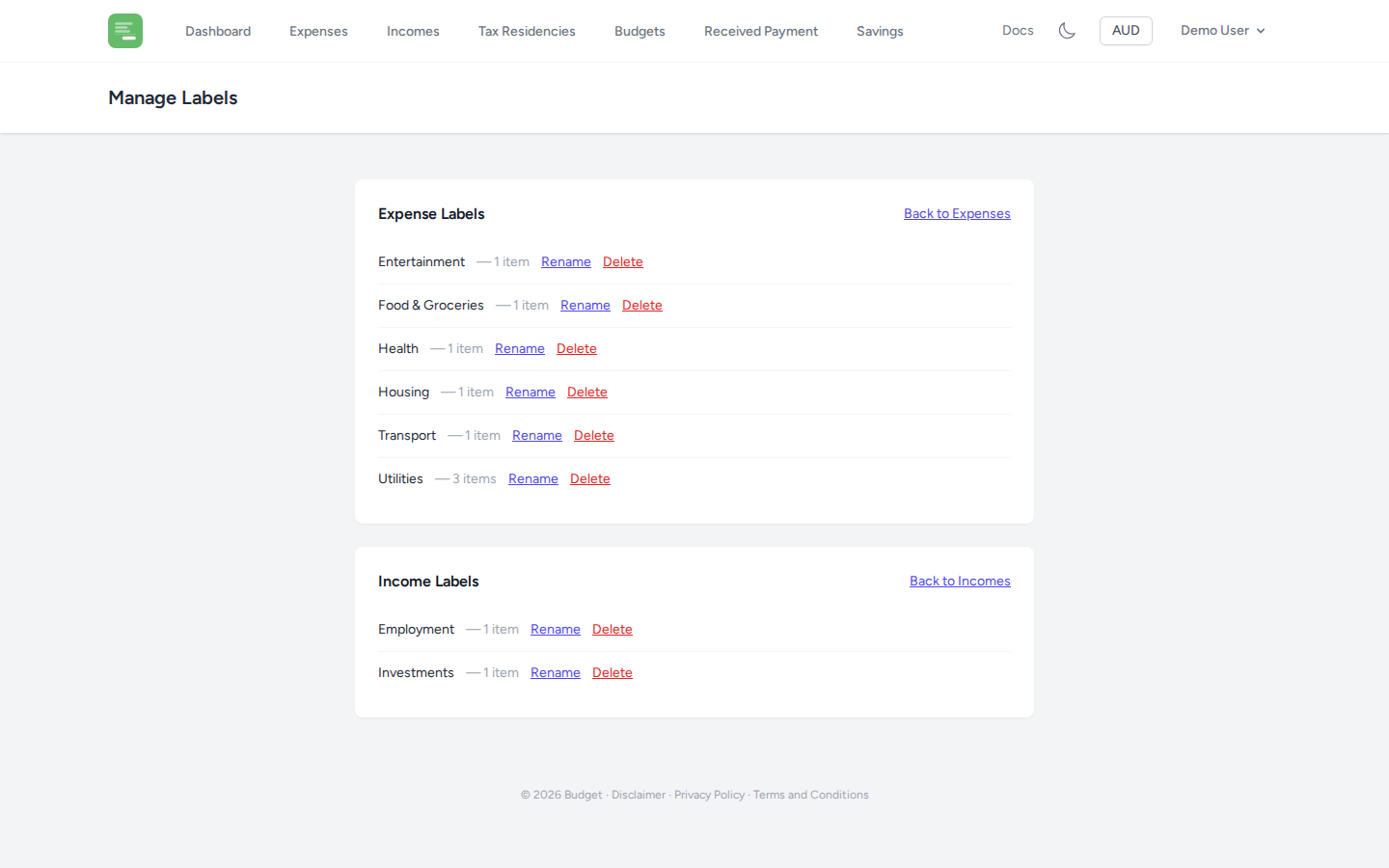
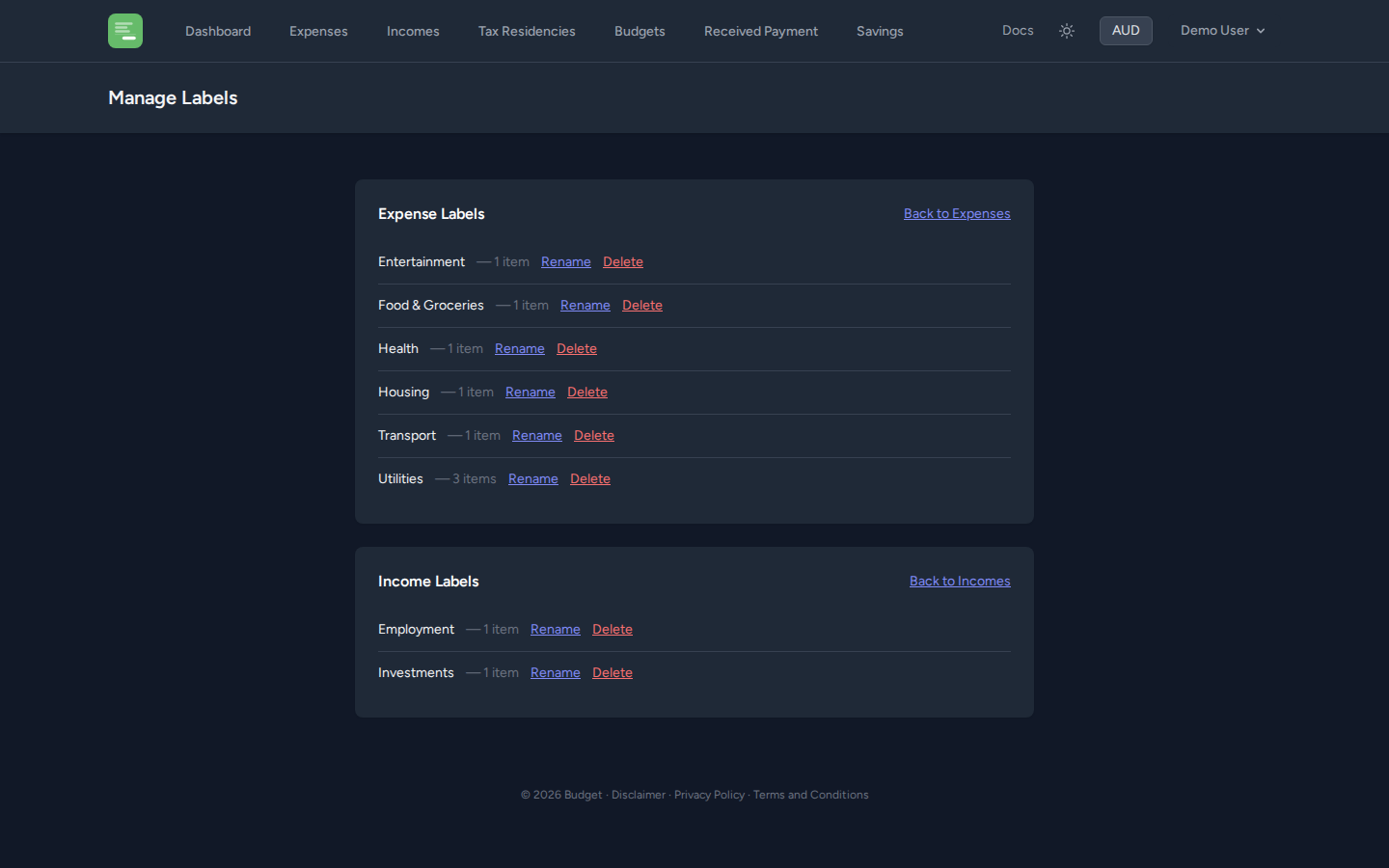
Expense labels and income labels
Labels are typed — an expense label can only be assigned to expenses, and an income label can only be assigned to incomes. The labels page shows the two types in separate sections.
Creating a label
Labels are created in two ways:
- Inline on the expense/income form — when creating or editing an item, type a new label name and it will be created and assigned in one step
- Automatically — a label that doesn't exist yet is created the first time you assign it
There is no dedicated "create label" page — labels emerge as you add items.
Renaming a label
Click the Rename button next to any label. An inline input field appears with the current name pre-filled. You can:
- Type the new name and click Save
- Press Enter to save
- Press Escape or click Cancel to discard
Renaming a label updates it everywhere — on all items that use it and in all budgets that include it.
Deleting a label
Click Delete next to a label. You'll be asked to confirm. Deleting a label:
- Removes it from all items that were assigned to it
- Removes it from all budgets that included it
- Does not delete the items themselves — they simply lose that label
If a label is the only link between an item and a budget, deleting the label will remove that item from the budget's calculations.
Item count
Each label shows how many items currently use it. This helps you identify labels that might be unused (count = 0) or heavily used.